Managing Tour Access
These are the jobs that come up once a tailored tour is live. Setting up access in the first place is in Step 6: Give Access to the Tour.
A traveller has lost their reference
Section titled “A traveller has lost their reference”The Online Tour Reference is printed at the bottom of every page of their brochure: “quote rgtu271”.
If they do not have the brochure, find the tour in Members. The member’s name is the reference. There is no reset: the reference never changes.
What travellers see
Section titled “What travellers see”Travellers go to the Tailored Tours page (the View your tour button at the top of every page) and type the reference from their brochure.
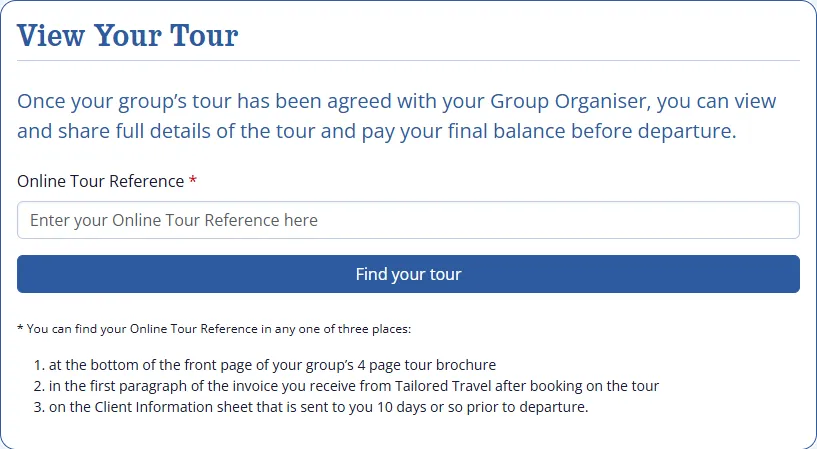
The reference is right and the tour is online
Section titled “The reference is right and the tour is online”They go straight to their tour. Capital letters don’t matter, and nor do spaces before or after the reference.
The reference doesn’t exist
Section titled “The reference doesn’t exist”Usually a typing mistake. They see a message in red asking them to check the online tour code on their brochure:
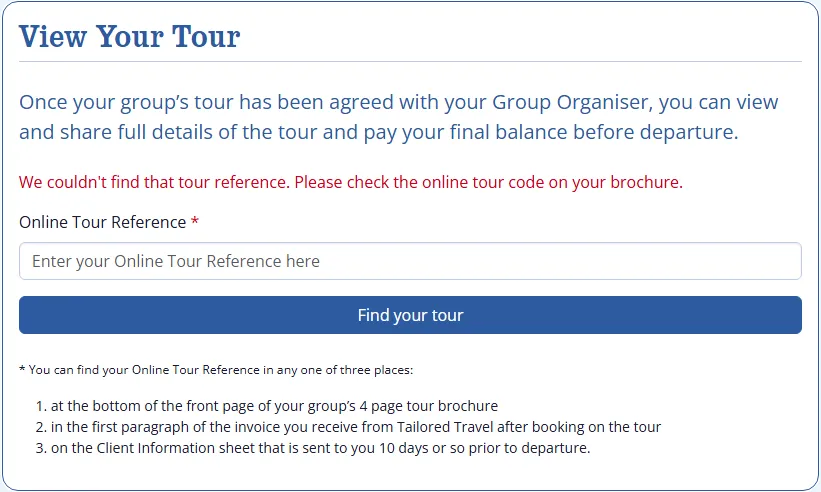
The reference exists, but its tour isn’t online
Section titled “The reference exists, but its tour isn’t online”They see a message asking them to try again in 24 hours:
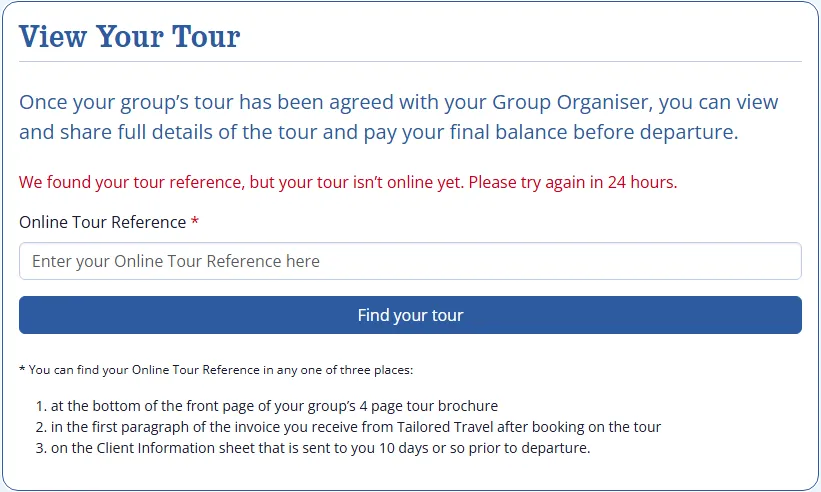
This one also sends you an email: see below.
They want to see a different tour
Section titled “They want to see a different tour”A traveller who is logged in goes straight to their own tour, so the reference box doesn’t appear. To see a different tour they click Log out on their tour page first:
Sending the group a link that logs them straight in
Section titled “Sending the group a link that logs them straight in”Every tailored tour has its own magic link. Anyone who opens it goes straight to the tour, without typing the reference. It is handy for the organiser’s email to the group.
- Open the tour in Content, then the Tour Properties tab.
- Under Tour Access, find Magic link and click Copy.
- Paste it into your email.
The link keeps working after the tour has run, for as long as the tour is published and its member is Approved. If either changes, the link stops working and the traveller is asked for the reference from their brochure. More detail: #1861.
You’ve had a “Tour reference with no tour online” email
Section titled “You’ve had a “Tour reference with no tour online” email”The website sends it when someone types a reference that exists, but has no tour to show. The email says which reference was tried, and when.
It comes once a day per reference, however many travellers try. Everyone on a tour shares one reference, so one email can mean a whole group is waiting.
To fix it, check in this order:
- Is the tour on the website? If not, it still needs adding. Tell the web developer.
- Is the tour published? An unpublished tour counts as not online.
- Does the member’s Tour Page point at the tour? Open the member in Members.
- Is the tour going ahead? If not, the member can be removed. Tell the web developer.
Once it’s fixed, the traveller’s reference works straight away. They were told to try again in 24 hours.
A traveller cannot log in
Section titled “A traveller cannot log in”Check these in order:
- They typed the reference correctly. Letters and numbers, no spaces.
- The member is Approved. Open it in Members. If Approved is off, nobody can log in.
- The member’s Tour Page points at this tour.
- The tour page is protected for this member. Content, the tour, …, Public Access.
If all four look right, tell the web developer.
A reference is wrong
Section titled “A reference is wrong”Tell the web developer. The member’s username and name both need changing, and it has to be done carefully so the member is not accidentally locked out.
After the tour has departed
Section titled “After the tour has departed”The tour page stays live. Leave the page, the member and the brochure as they are, so the group can still log in, including by the magic link. Agreed on 9 November 2026.
There is no form for travellers to leave a review or send photos after the tour. That was decided against on 9 November 2026 (#683).
See Personal Data.